Getting Started
Get Started with Spiegel Financial
Set up your account, connect your financial data, and learn the core workflows for tracking your wealth across banks, brokerages, entities, and alternative investments.
Last updated
Welcome to Spiegel Financial
Spiegel Financial is a single control layer for your entire wealth - bank accounts, brokerages, private equity, real estate, digital assets, and more. It consolidates portfolio reporting, entity management, treasury workflows, and AI-powered portfolio intelligence in one place.
The platform is built for individuals and families managing complex, multi-asset portfolios - typically $5M to $100M in AUM - where traditional tools like spreadsheets and online banking dashboards stop being enough.
For the clearest first experience, complete these three steps before exploring the dashboard: connect your bank accounts, add your manual holdings, and set up your entities. The dashboard is most useful once your data is in.
Connect your bank and brokerage accounts
Spiegel uses Plaid to connect banks, brokerages, and other financial institutions securely. Connections are read-only - Spiegel never initiates transfers or moves funds. Once connected, your balances and transaction history sync automatically.
Open Plaid Sync
Navigate to Plaid Sync from the sidebar. You'll see a summary of connected institutions, account count, and last sync time.
Add an account
Click + Add Account. To add more accounts at an institution you've already connected, select it from the list. To link a new bank or brokerage, click Connect New Institution and follow the Plaid authorization flow.
Wait for the initial sync
Most accounts sync within a few minutes. Some institutions can take up to 24 hours for historical data to fully appear. Your connection is successful even if some data is still loading.
Account data may be 1–2 days old depending on how often your financial institution reports to Plaid. If a connection shows an error, click Reconnect from the Plaid Sync page.
Add manual holdings
Not everything can be connected through Plaid. Use Holdings → Add Holdings to manually track assets that aren't held at a connected institution - including real estate, public equity, private equity, and digital assets.
Open Holdings
Navigate to Holdings from the sidebar. This is your complete asset list across all connected and manually-tracked positions.
Add a holding
Click Add Holdings and fill in the asset details - name, asset class, value, acquisition cost, and date. Set the asset class accurately so it appears correctly in your allocation chart.
Assign to an entity
Every holding should be assigned to a legal entity - a trust, LLC, foundation, or personal account. Set the Entity field when adding the holding, or update it later in bulk.
Holdings without an entity are shown as Unassigned on your dashboard and excluded from entity-level reporting. Assign every holding before running reports.
Set up your entities
Most wealth at this level is held across multiple legal structures - trusts, LLCs, foundations, and holding companies. The Entity Portfolio is where you map that structure so every holding, report, and dashboard view reflects the correct legal ownership.
Open Entity Portfolio
Navigate to Entity Portfolio from the sidebar. This shows all your entities and their ownership relationships.
Create your top-level entities first
Click Create Entity and start with your trusts and holding companies. Add the entities they own underneath so you can link each one to its parent as you go.
Link holdings to entities
Once entities are created, go to Holdings and assign each holding to the correct entity. Use the bulk select feature to assign multiple holdings at once.
Enter entity names exactly as they appear on your formation documents - not nicknames or abbreviations. This matters when generating reports for your CPA or attorney.
Set up Email to Vault
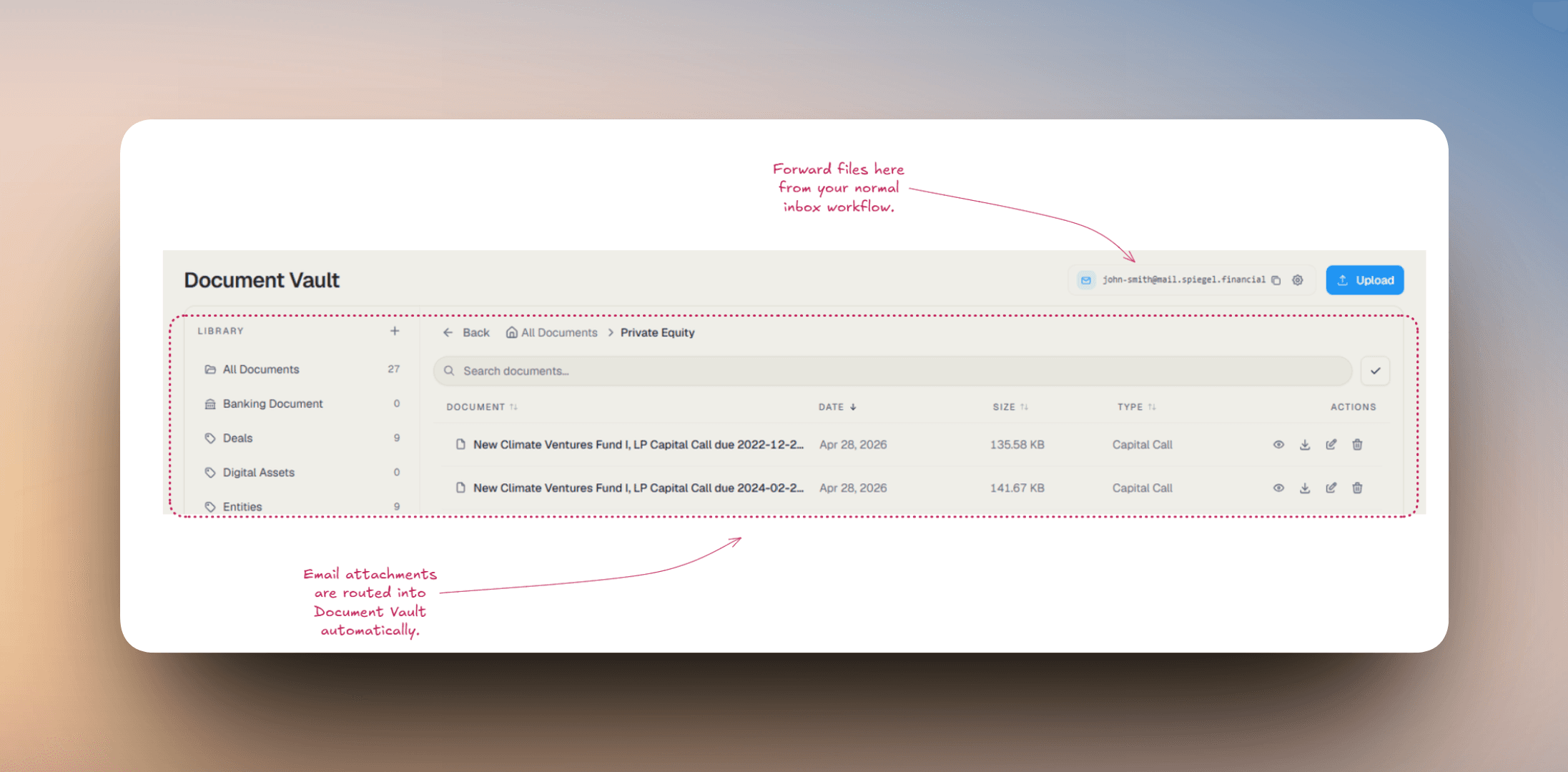
Email to Vault gives you a dedicated Spiegel email address for document intake. Instead of downloading statements, notices, and closing files manually, you can forward them from your inbox and let Spiegel route the attachments into Document Vault automatically.
This is especially useful for recurring financial paperwork such as monthly statements, K-1s, capital call notices, distribution notices, insurance files, deeds, closing packets, and tax documents. It turns your inbox into a lightweight intake workflow instead of a place where important files get buried.
- Each user gets one unique vault address based on a custom prefix, such as familyoffice@mail.spiegel.financial.
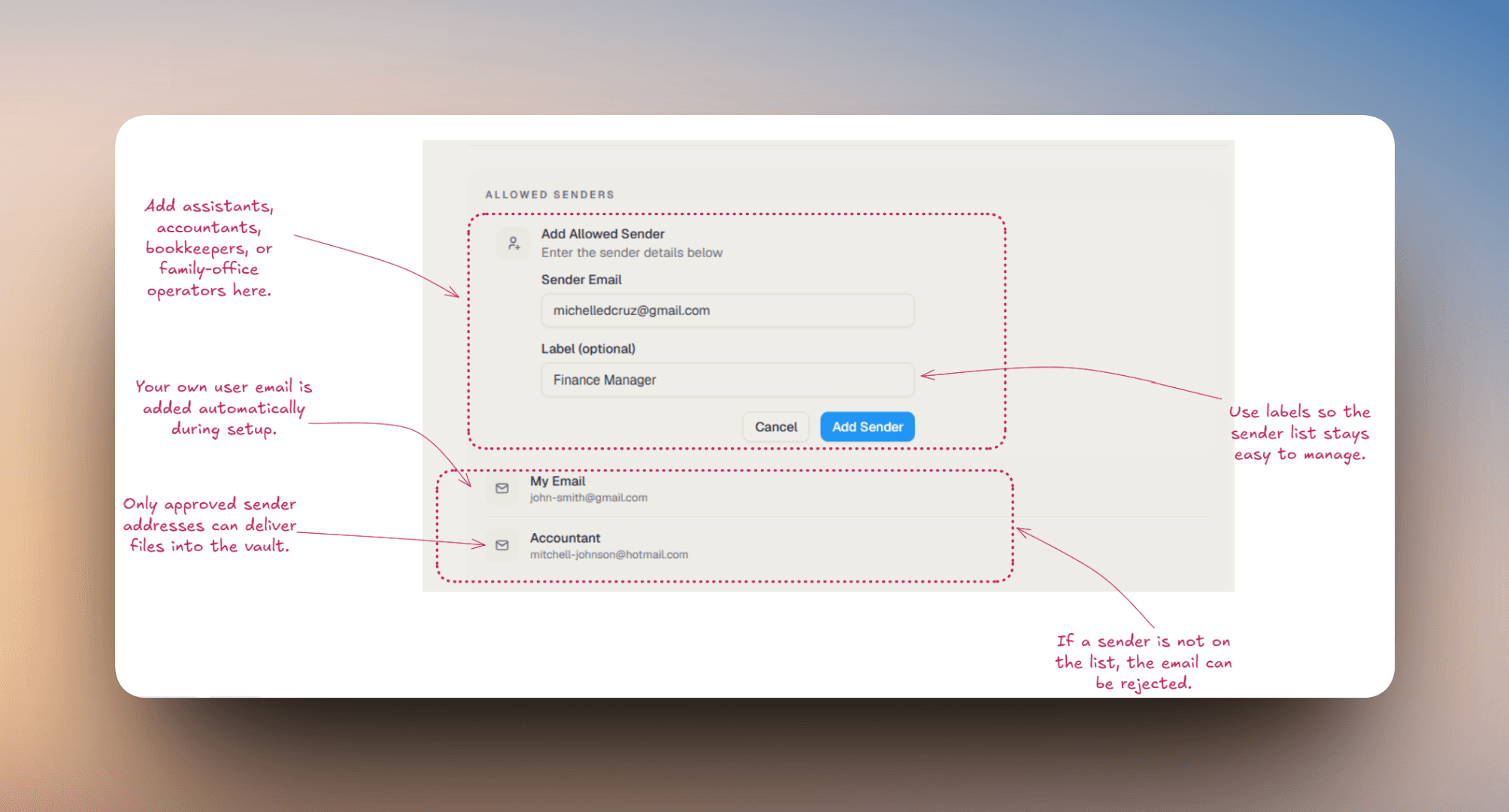
- Your own user email is automatically added as an allowed sender when the vault address is created, so you can begin forwarding immediately.
- Incoming mail is tracked in the vault inbox workflow, while accepted attachments are stored in Document Vault for long-term access.
- You can reach Email to Vault from two places: Dashboard > Settings > Email to Vault, or the Email Ingress control shown in Document Vault.
Open Email to Vault settings
Go to Dashboard > Settings > Email to Vault. If you are already working in Document Vault, use the Email Ingress shortcut in the header to jump directly into the same setup screen.
Choose your Email to Vault prefix
Create a prefix that is easy to remember and share internally. The backend accepts prefixes that are 3-30 characters, use lowercase letters, numbers, and hyphens, and are not reserved or already taken. Once available, Spiegel generates your full vault address automatically.
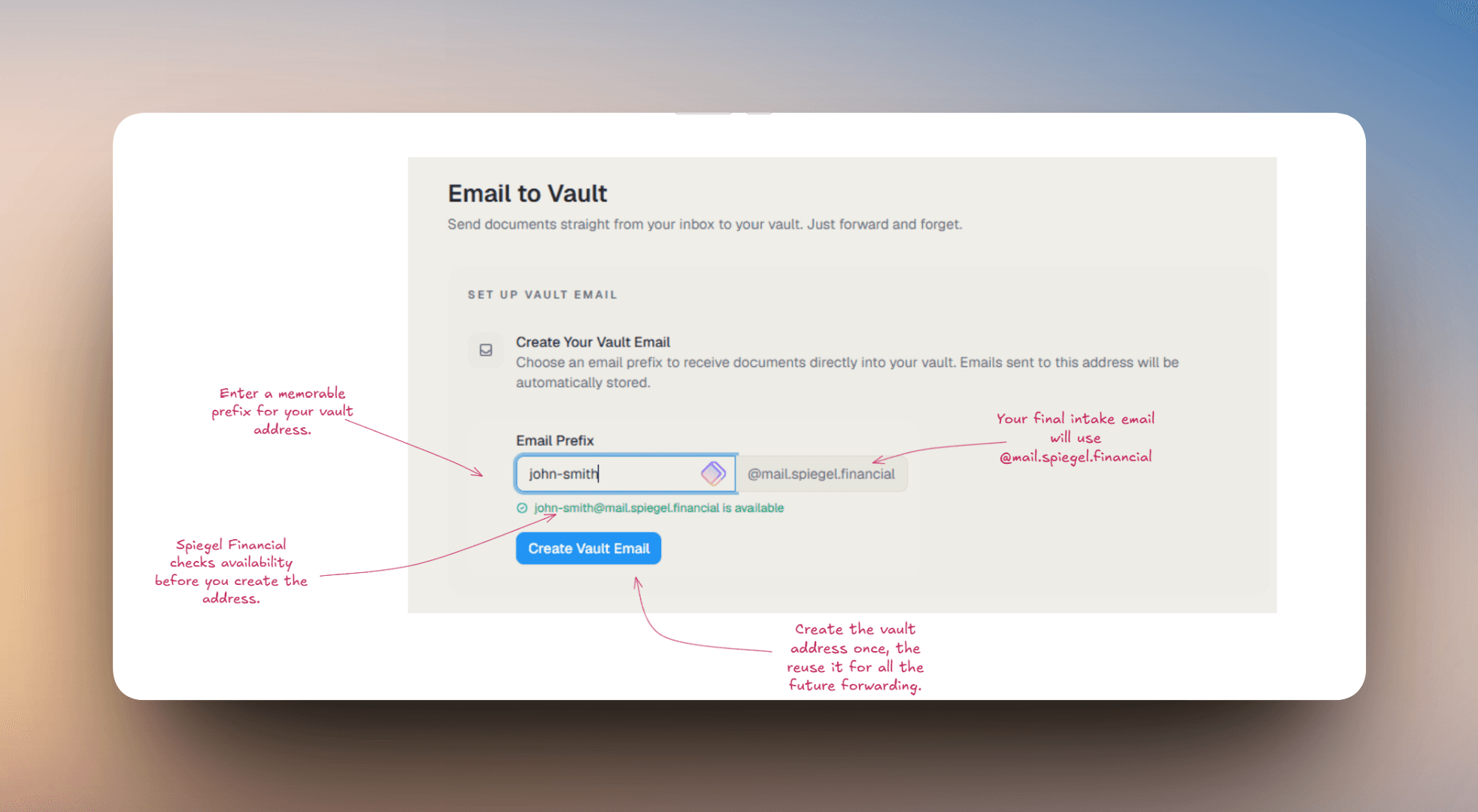
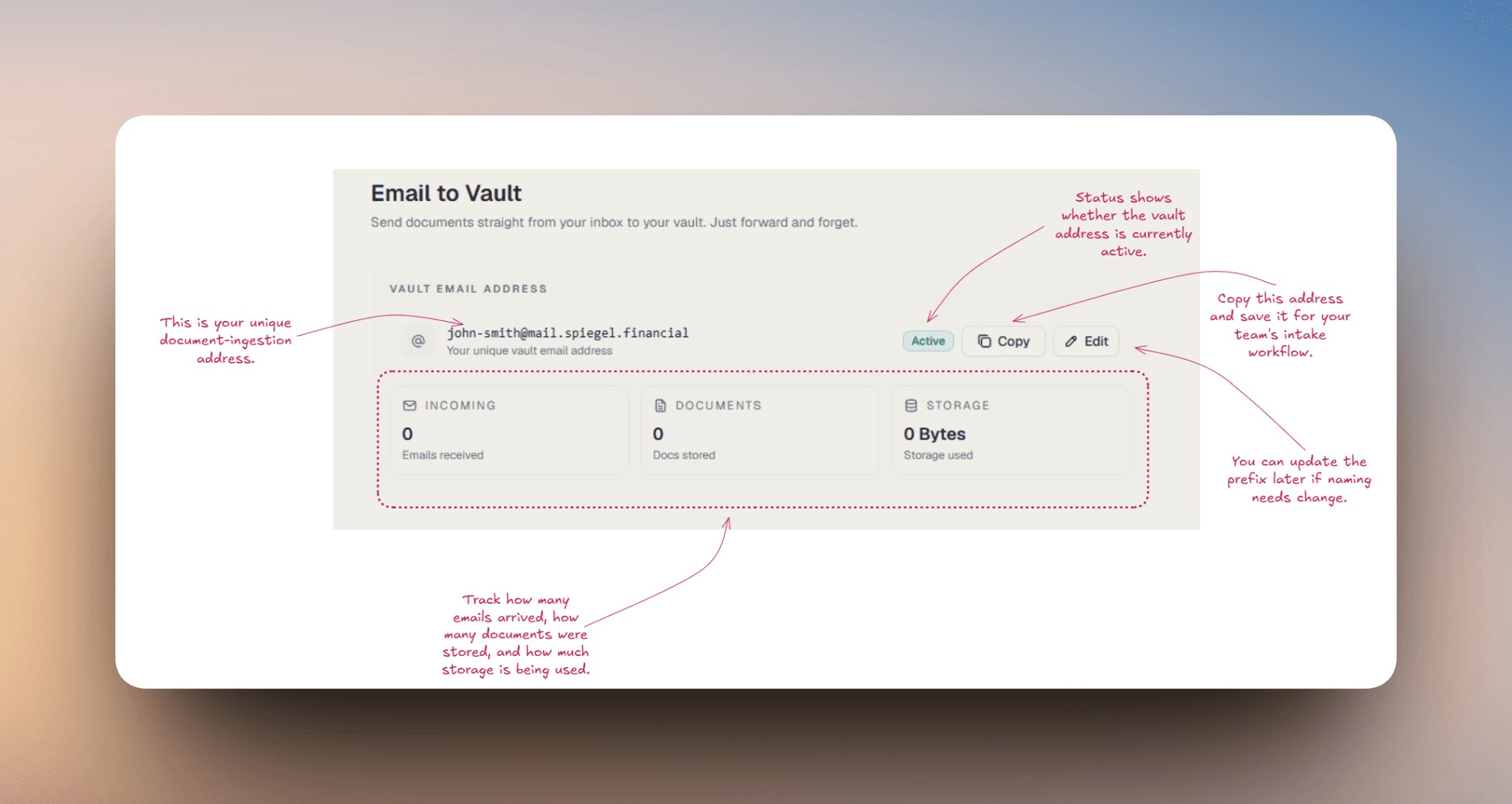
Copy and save the generated address
After setup, copy the full vault address and save it where your team can find it. This becomes the intake destination you will forward documents to from your personal inbox, assistant inbox, bookkeeper inbox, or other approved sender addresses.
Add your allowed senders
Review the Allowed Senders list and add any additional email addresses that should be allowed to send documents into the vault. Typical examples include a spouse, executive assistant, family office operator, controller, CPA, or outside bookkeeper. You can also give each sender a label to make the list easier to manage later.
Forward emails with supported attachments
Send or forward emails that contain the source documents you want to keep. Spiegel currently accepts common financial file types such as PDF, DOC, DOCX, XLS, XLSX, CSV, JPG, JPEG, PNG, GIF, WEBP, and TIFF attachments.
Review what landed in Inbox and Document Vault
After an email is processed, check the vault workflow to confirm it arrived as expected. Use Inbox to review incoming email activity and use Document Vault to work with the stored files. The Email to Vault screen also shows usage metrics such as emails received, documents stored, and storage used.
Email to Vault is not an open dropbox. Spiegel checks that the vault address exists, that it is active, that the sender is on the allowed-sender list, and that the email contains supported attachments. Emails can be rejected or stored without document creation if the sender is not approved, the mapping is inactive, no valid attachments are included, or processing limits are exceeded.
The backend currently enforces a 25 MB limit per attachment, a 30 MB limit per email, and default daily processing quotas of 50 documents or 100 MB of processed attachment volume per day. Those limits protect the ingestion pipeline and give you a predictable operating envelope for routine document intake.
The easiest habit is to forward documents as soon as they arrive. If quarterly statements, tax files, or deal notices sit in your personal inbox for weeks, they become a cleanup project. If you forward them immediately, Document Vault turns into a living archive instead of a year-end catch-up task.
Explore your dashboard
Once your accounts and holdings are connected, your dashboard becomes your home base. It rolls up everything into a single view - live data, no manual refreshes needed.
- Total AUM - the combined market value of everything you own across all connected and manually-tracked holdings.
- Total Liabilities - all outstanding debt: mortgages, loans, and credit balances.
- Total P&L - your unrealized profit or loss across all positions.
- Total Cash - liquid cash across all bank and brokerage accounts.
- Financial Overview chart - AUM and Net Worth plotted over time. Click Insights to see a daily attribution breakdown of what drove the move.
- Asset Allocation - how your AUM splits across real estate, public equity, private equity, digital assets, and fixed income.
- Holdings by Entity - your wealth distributed across legal structures at a glance.
Security
Spiegel Financial is built with institutional-grade security from the ground up. Your credentials are never stored - all account connections are handled securely through Plaid. Financial data is encrypted end-to-end using AES-256 and TLS 1.3, shared only with the people and entities you explicitly authorize.
- Use a unique, strong password not reused on any other service.
- Enable two-factor authentication before adding financial accounts.
- Review your connected institutions regularly and remove any you no longer use.
- Sign out of Spiegel when using a shared or public device.
Spiegel Financial will never ask for your account password by email, phone, or chat. If you receive that kind of request, do not share credentials and contact support immediately.