Private Equity
Your Private Equity, Explained
A dedicated workspace for your fund commitments, direct investments, capital calls, distributions, and NAV statements - everything that makes private investments different from a brokerage account.
Last updated
Welcome
Private equity doesn't fit cleanly into a traditional portfolio view. You commit capital that gets called over time, NAVs are reported quarterly rather than daily, and the meaningful numbers - IRR, paid-in capital, distributions - are different from the ones that matter for public stocks.
This page gives PE its own structure. The list view shows every investment with its key metrics; clicking into any investment opens a detail view with full statement history, capital call records, and performance over time.
The platform distinguishes between funds (LP commitments where you wait for capital calls and distributions) and direct investments (you write a check directly into a company, typically in a single transaction). Both live on this page but behave differently - direct investments don't have capital calls, for example.
The action bar
Two buttons sit at the top right.
- Pending Reviews - Opens a list of items that need your attention - typically newly-uploaded statements awaiting confirmation, capital call notices that haven't been acknowledged, or valuations that need to be approved. Worth checking weekly so nothing sits stale.
- New investment - Opens a dropdown with two choices: Add fund (for LP commitments) and Add direct investment (for a single check into a company). The data fields you'll be asked for differ between the two.
Email to Vault
Private equity documents often arrive by email long before they are reflected in portfolio metrics. Email to Vault gives you a dedicated Spiegel intake address so you can forward capital call notices, quarterly statements, K-1s, investor letters, side letters, and subscription documents straight from your inbox into the platform.
This is one of the cleanest ways to keep PE reporting current. Instead of downloading attachments manually and re-uploading them later, you can route them into Spiegel as they arrive. Relevant documents can then feed the document extraction workflow and appear in Pending Reviews when a match or confirmation is needed.
- Each user gets one unique vault address based on a custom prefix, such as familyoffice@mail.spiegel.financial.
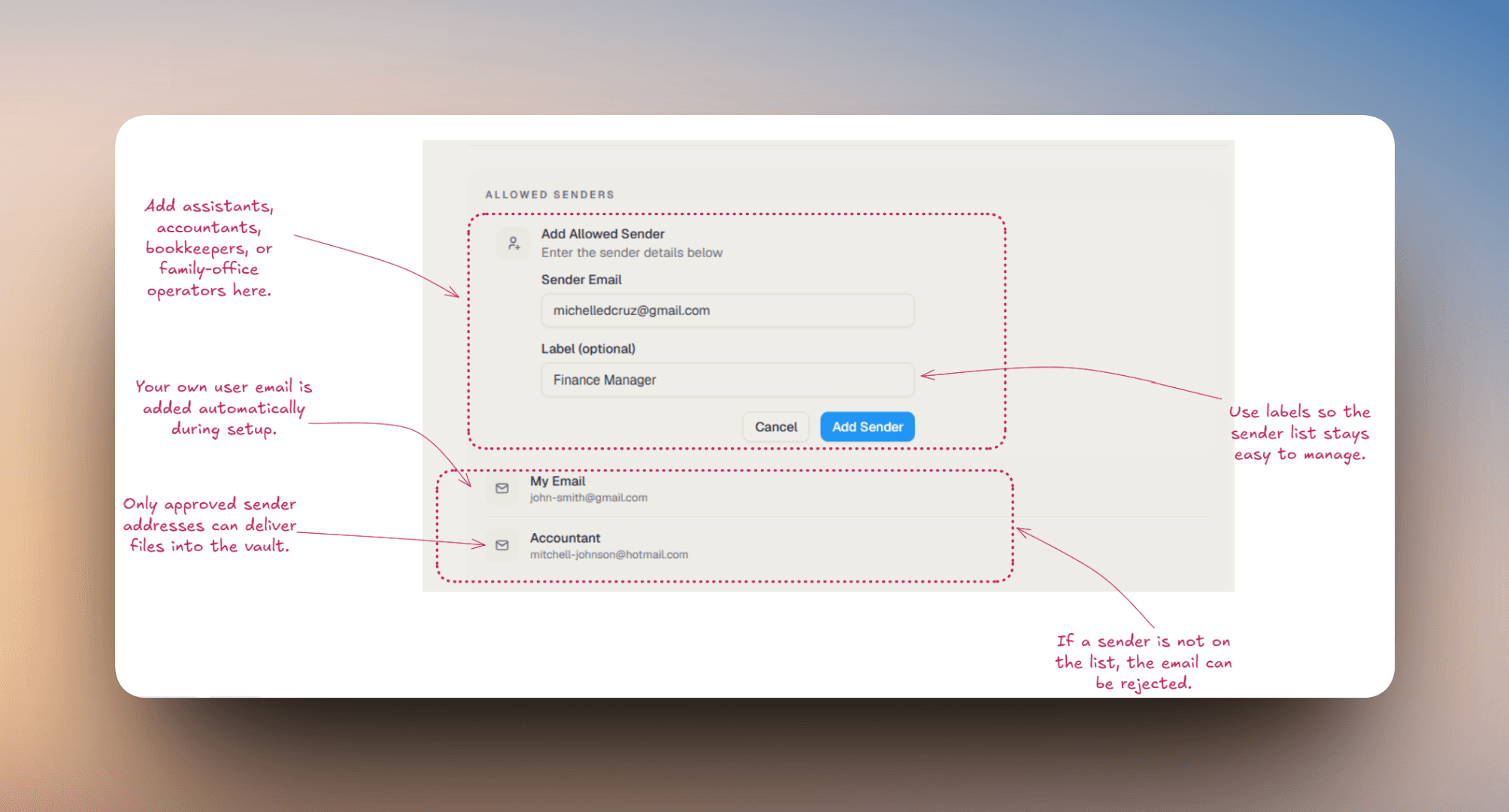
- Your own user email is automatically added as an allowed sender when the vault address is created, so you can begin forwarding immediately.
- Incoming mail lands in the vault workflow first, and relevant PE documents can continue into extraction, matching, and review.
- You can set this up from Dashboard > Settings > Email to Vault, or from the Email Ingress control shown in Document Vault.
Create your PE intake address
Open Dashboard > Settings > Email to Vault and choose a prefix that your team will remember. The backend accepts prefixes that are 3-30 characters, use lowercase letters, numbers, and hyphens, and are not reserved or already taken.
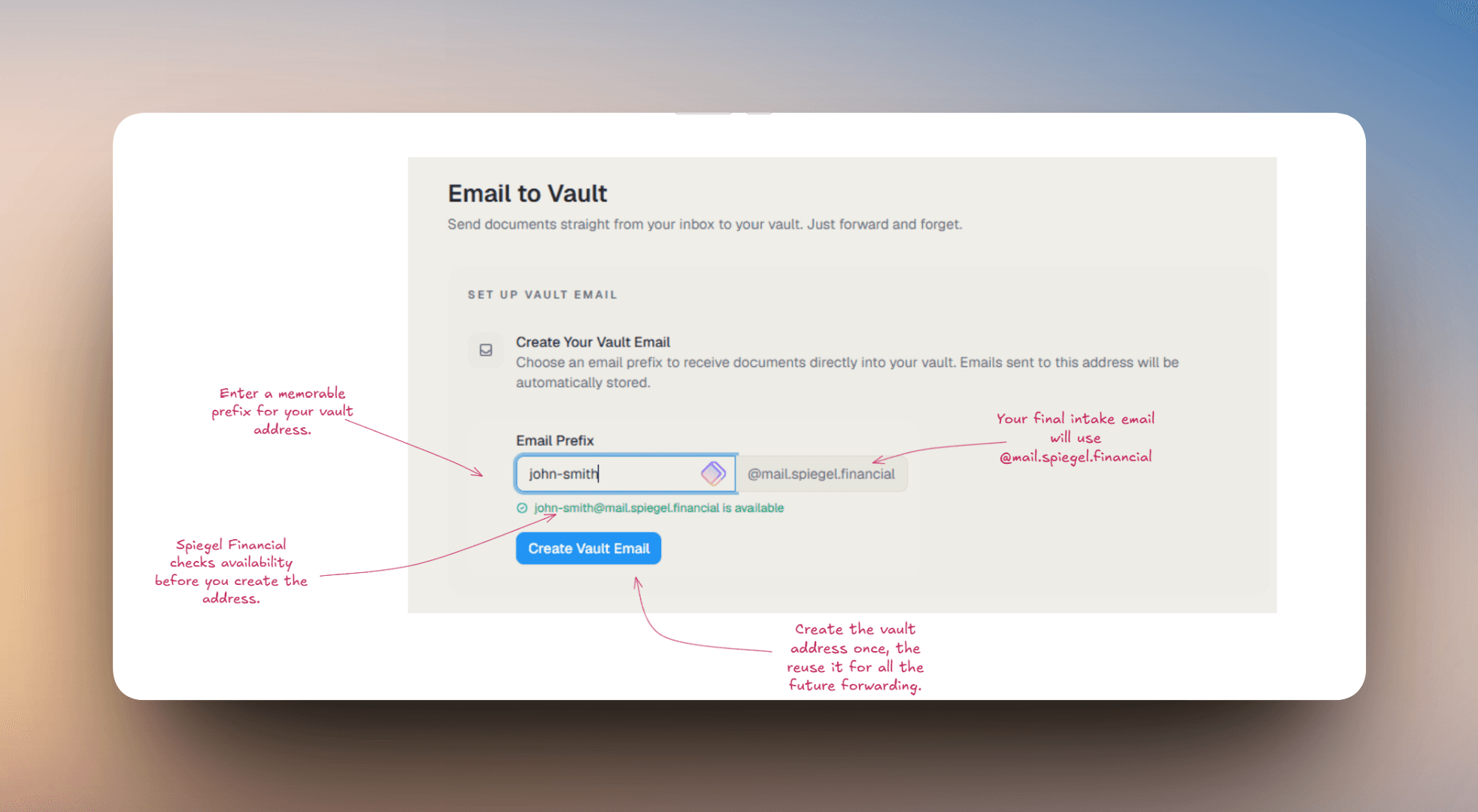
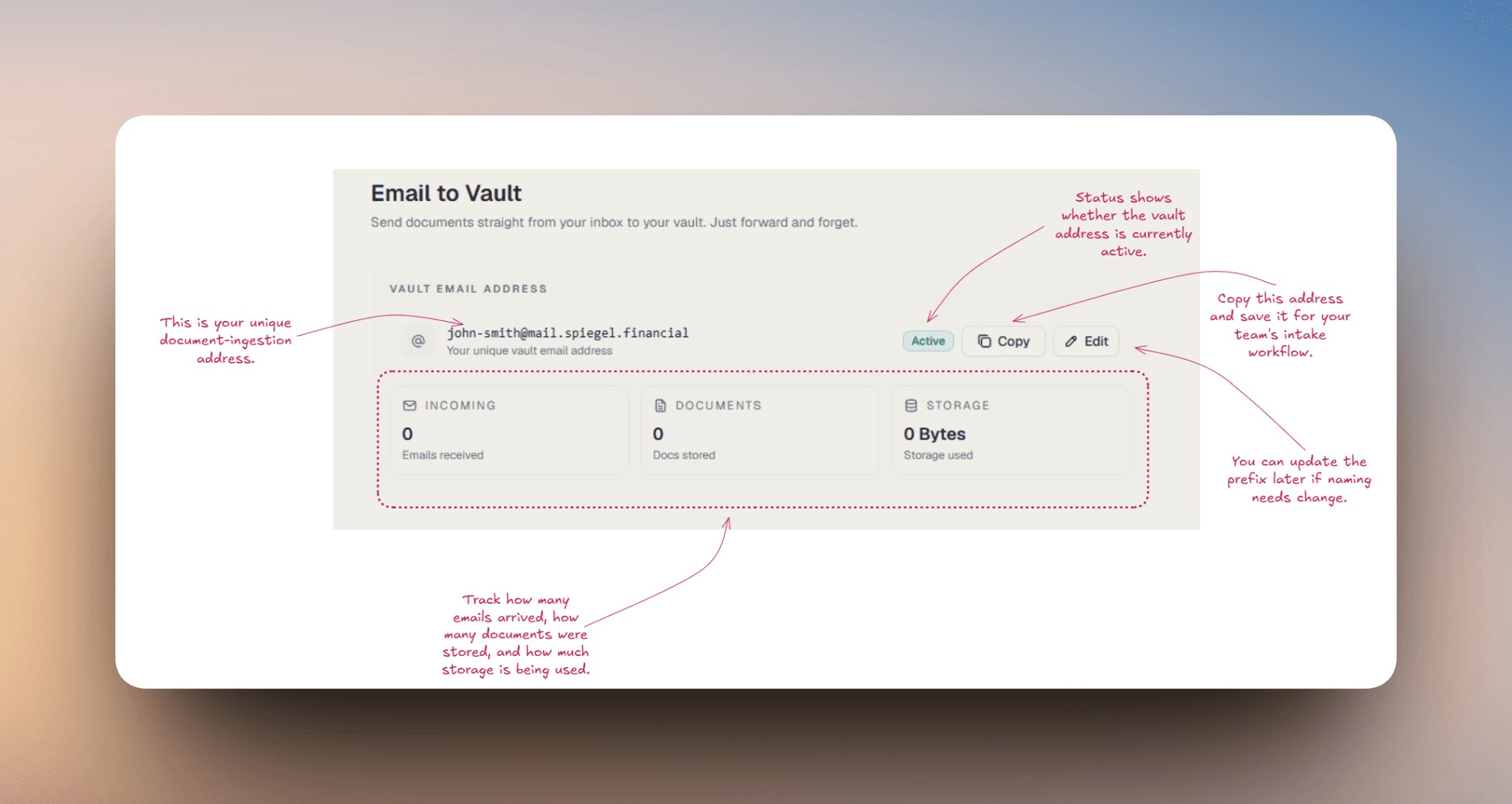
Save and share the address internally
Once the address is created, copy it and save it where the people handling PE operations can find it. A family office operator, assistant, controller, or investment team member can use the same address whenever a fund manager sends new documents.
Approve the sender list
Add any email addresses that should be allowed to forward PE files into the vault. Typical examples include assistants, controllers, fund admins, outside accountants, and other operations contacts. Sender labels help keep the allowlist readable over time.
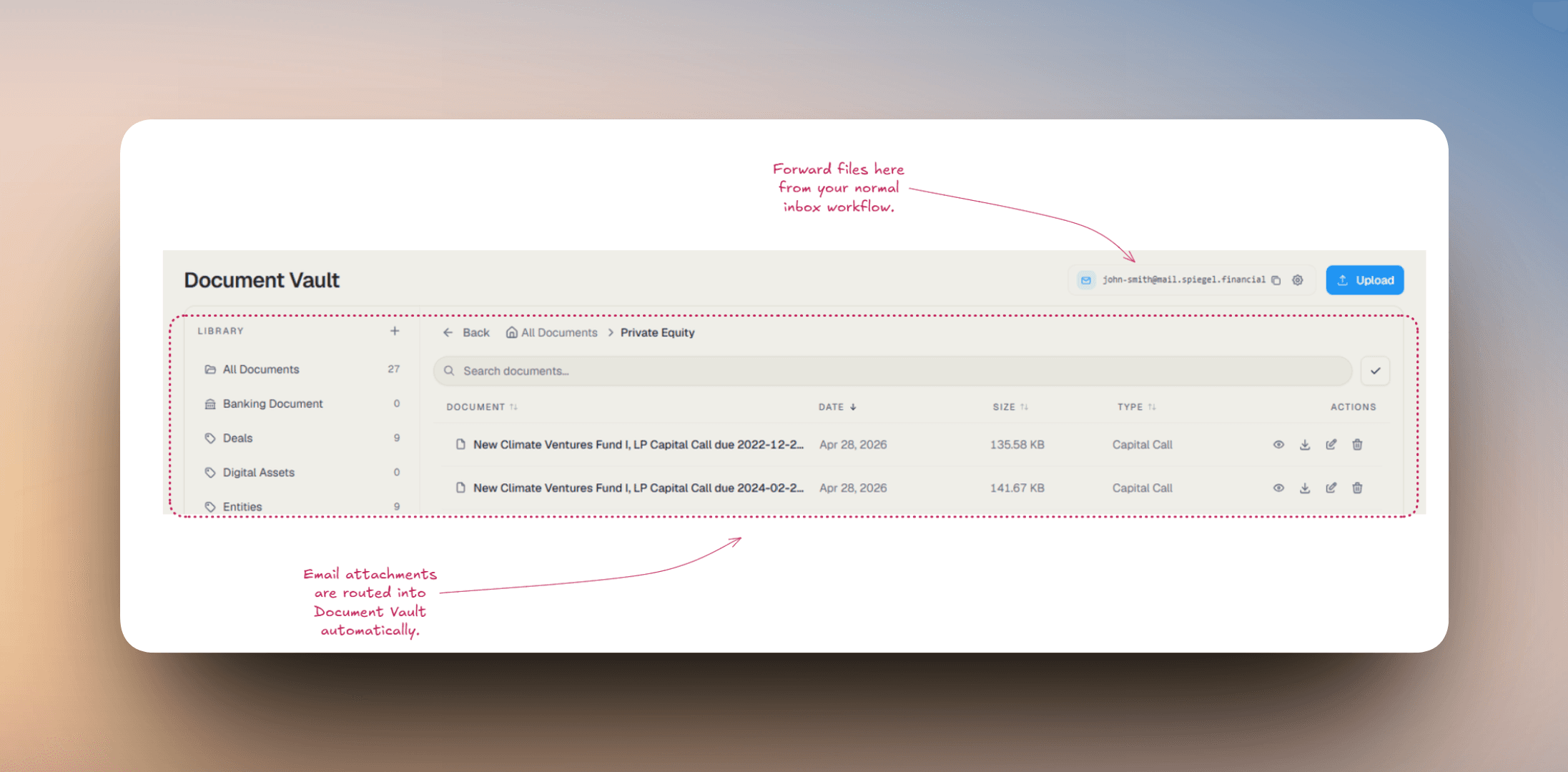
Forward PE documents as they arrive
Forward emails with supported attachments such as PDF, DOC, DOCX, XLS, XLSX, CSV, JPG, JPEG, PNG, GIF, WEBP, and TIFF files. The best use cases here are recurring PE documents like capital call notices, quarterly statements, and other GP reporting that you do not want to lose in personal inboxes.
Review the outcome in Document Vault and Pending Reviews
After forwarding, the attachments are stored in the vault workflow. If Spiegel identifies the file as a relevant PE document, extraction can begin in the background and the item can move into Pending Reviews for match confirmation, field review, or final approval before it updates the investment record.
Email to Vault is not an open intake inbox. Spiegel checks that the vault address exists, that it is active, that the sender is on the allowed-sender list, and that the email contains supported attachments. A document can still require review if the system cannot confidently match it to the correct fund or direct investment.
The most effective PE habit is to forward documents the same day they arrive. Doing that turns quarterly statements and capital calls into a running workflow instead of a month-end or quarter-end cleanup project.
Document Extraction Workflow
Private Equity includes a document extraction workflow for uploaded fund documents. Its job is to read the file, identify what kind of document it is, pull out the important values, and either match it to an existing investment automatically or send it to Pending Reviews for confirmation.
The extraction flow is primarily used for capital-call-style documents and statement-style documents.
Step 1 - Upload the document
Upload the document anywhere PE intake is supported - from a fund or direct investment workflow, from the Document Vault, or by sending it through the Email to Vault flow. The platform stores the source document first, then checks whether it is a relevant private-equity document. If it is, extraction starts in the background and the item becomes visible in the inbox for review.
Step 2 - Classify the document
The platform classifies the document type - for example, capital call, statement, or another private-equity document. This step determines which fields are extracted and which record type can be created from the file.
Step 3 - Extract the key fields
The platform extracts the key fields from the document and builds a structured payload from the values it can detect. Each extracted field also receives a confidence score so lower-confidence values can be surfaced for review.
Step 4 - Try to match the document to an existing record
Using the extracted fund or investment name and related details, the platform tries to match the document to an existing fund or direct investment. The outcome can be a clear match, multiple possible matches, or no confident match.
Step 5 - Decide whether to save automatically or request review
If the match is strong, the extracted values are high quality, and no blocking issues are found, the document can be auto-processed. Otherwise it is sent to Pending Reviews so you can confirm the match and edit the extracted fields before saving.
What gets extracted
The exact fields depend on the document type, but the platform looks for the fields that matter most for capital calls and statements.
For capital calls
Typically includes fund name, call ID, due date, contribution amount, total commitment, prior contributions, remaining commitment, and other call-specific notes such as purpose or use of funds.
For quarterly statements
Typically includes fund name, statement date, NAV per unit, total NAV or market value, units held, contributions to date, and distributions to date. Additional fields may also appear if they are present in the document and extracted with usable confidence.
If a match is found
- If the platform finds a single high-confidence match to an existing fund or direct investment, it links the document to that record.
- If the extracted values are also clean enough and no blockers are present, the document may be processed automatically without manual review.
- If the match is found but some fields are low-confidence or need a quick confirmation, the item appears in Pending Reviews as a review step rather than saving silently.
If no match is found
- If no confident match exists, the item appears in Pending Reviews as needing assignment.
- From that review flow, you can choose an existing fund or direct investment manually.
- If the document belongs to something that is not yet in the system, you can create a new fund or a new direct investment directly from the review flow and continue processing from there.
If more than one match is found
When the platform finds multiple reasonable candidates, the item is flagged as a match conflict. You review the candidate list, select the correct fund or direct investment, and then confirm the extracted values.
If the extraction has a blocking issue
Some issues stop automatic processing entirely, such as duplicate statements, duplicate capital-call records, or other blocking consistency problems. In those cases, the item is surfaced as a problem to resolve rather than creating a new record automatically.
The safest mental model is: upload -> classify -> extract -> match -> review or save. If anything about the document, the match, or the extracted fields is uncertain, the workflow falls back to human review instead of silently writing data you may not trust.
Pending Reviews
Pending Reviews is the working queue for extracted private-equity documents that need attention before they are finalized.
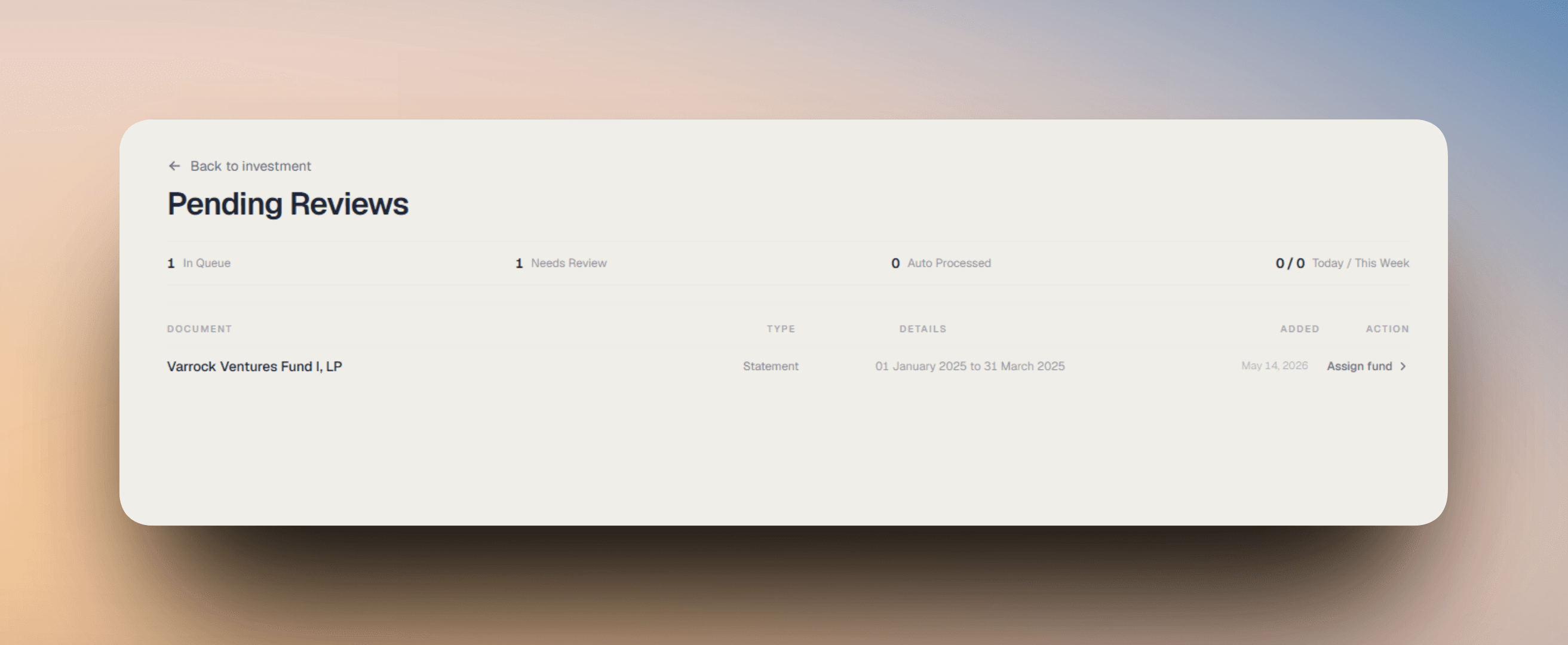
You will typically land here after uploading a relevant capital call or statement document from a fund workflow, a direct investment workflow, the Document Vault, or the Email to Vault flow.
What the top summary strip shows
- In Queue - Total documents currently waiting in the review workflow.
- Needs Review - Documents that still need a human check before they can be saved.
- Auto Processed - Documents that were matched and saved automatically without manual review.
- Today / This Week - A quick view of recent auto-processed volume.
What each row shows
- Document - The extracted fund or investment name the system is working from.
- Type - The detected document class, such as Statement or Capital Call.
- Details - The most relevant extracted context for that document, such as the reporting period or other identifying details.
- Added - When the document entered the extraction queue.
- Action - The next step required to resolve the item.
What the action means
- Assign fund appears when the document is unresolved or the system needs you to choose the correct match.
- Review details appears when a fund match exists but the extracted values still need confirmation.
- Once you open the item, you can confirm the extracted fields, correct any values, choose a different match, or create a new fund or direct investment if nothing in the system matches the document.
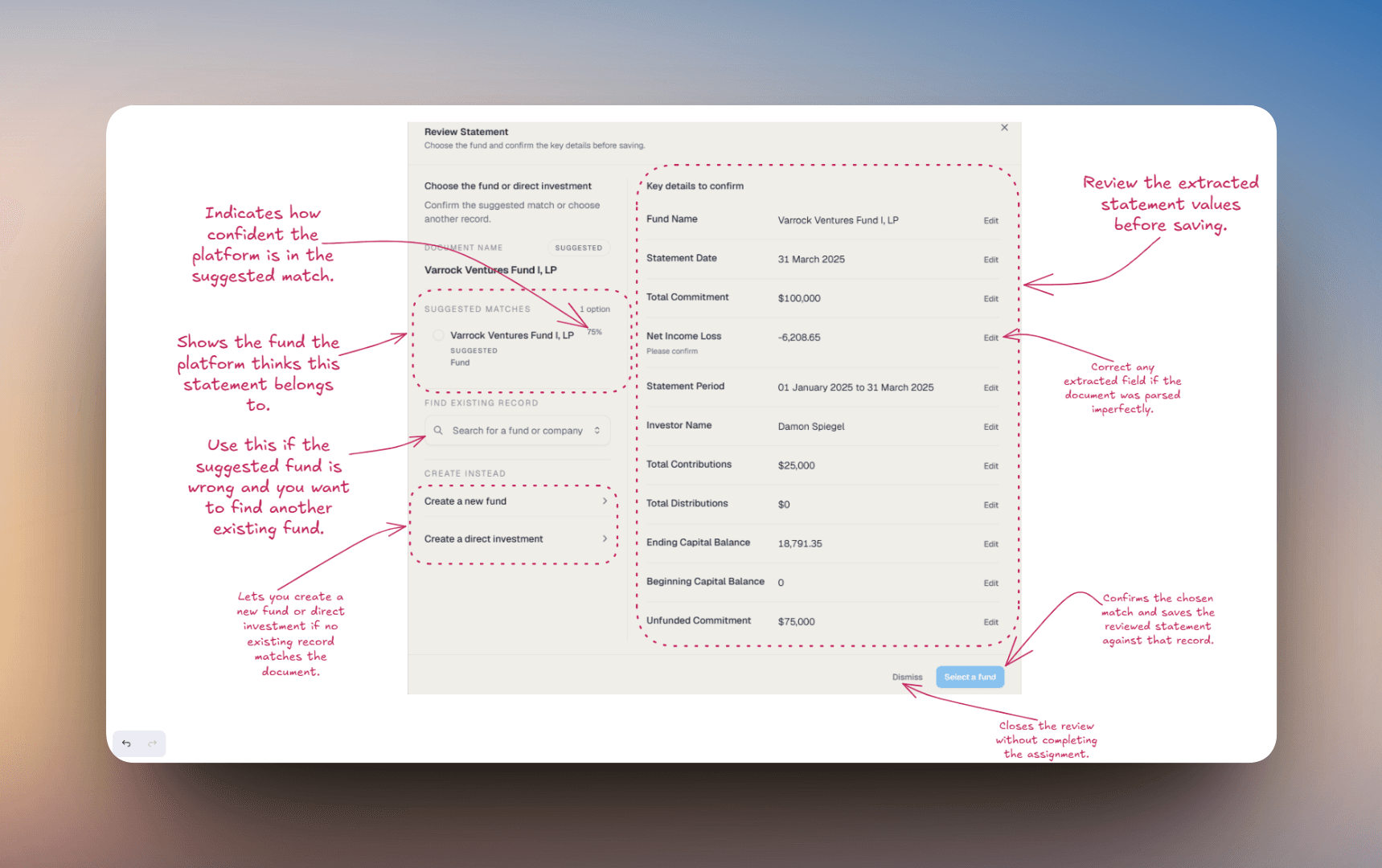
If a document shows up here, it does not mean extraction failed. It usually means the platform extracted enough information to continue, but wants you to confirm the match, the values, or both before anything is finalized.
PE metrics - what they mean
Private equity uses metrics that don't appear in public markets. Here's what each one tells you.
- Committed Capital - The total amount you've legally promised to invest in a fund over its life. The fund will call this in pieces over several years.
- Paid-in Capital - The amount of your commitment that has actually been called and contributed to date. Always less than or equal to Committed Capital.
- Open Capital - Commitment minus Paid-in - what's still outstanding and could be called in the future. Useful for cash planning.
- Distributions - Cash returned to you from the fund - typically from exits, dividends, or recapitalizations.
- NAV - Net Asset Value - the current estimated value of the fund's remaining holdings, as reported by the GP. Updated quarterly in most funds.
- IRR - Internal Rate of Return - the annualized time-weighted return that accounts for when each cash flow happened. The standard PE return metric.
- Vintage - The year the fund made its first investment. Funds are typically benchmarked against peers from the same vintage year.
For any fund: Total Value = NAV + Distributions. If that number divided by Paid-in Capital is greater than 1.0, the fund is "in the money" on a multiple-on-invested-capital basis. IRR adjusts that figure for time.
The investment detail view
Clicking any investment row opens its detail view. Four numbers across the top summarize the investment.
- Paid-in Capital - Total contributed to date.
- Distributions - Total returned to you to date.
- NAV - Latest reported value of remaining holdings.
- Statements - Count of statements on file. The platform builds the investment's performance history from these.
Below the header, five tabs let you dig deeper. At the top right, Edit opens the investment record for changes and Close returns you to the list.
- Overview - Three-panel summary - investment info, ownership, and key dates. Start here for a snapshot.
- Capital Calls - Every capital call notice on file, with dates, amounts, and status (paid, pending, overdue). Funds only.
- Statements - Quarterly or periodic statements from the GP. Each statement updates NAV and may report new distributions or fees.
- Performance - Historical IRR, TVPI, DPI, and other performance metrics over time. The fund's full track record from your perspective.
- Documents - All documents for the investment - subscription agreements, side letters, K-1s, capital call notices, statements. Searchable and downloadable.
The Overview tab - three panels
The default tab shows three panels side by side: Investment Info, Ownership, and Dates.
- Fund Type - The strategy classification - Venture Capital, Growth, Buyout, Private Credit, Real Assets, etc.
- Strategy - A more specific descriptor when applicable (e.g., "Seed-stage SaaS" or "Mid-market buyout").
- Manager - The GP, deal lead, or person you're working with on this investment.
- Open Capital - Commitment minus Paid-in. The amount still callable.
- Commitment - Your total committed capital.
- Distributed - Total returned to you.
- Investment Count - For funds, how many underlying portfolio companies you have exposure to. Higher generally means more diversification within the fund.
- Statement Count - How many periodic statements have been uploaded and processed.
- Vintage - Year the fund made its first investment.
- Closing Date - When the fund officially closed to new commitments.
- Created / Updated - When this investment was added to the platform, and when any field last changed.
Performance
The Performance tab shows the investment's track record as a chart alongside the key metrics that matter over time.
- IRR - Annualized return based on the timing of all cash flows. The standard PE return metric.
- TVPI - Total Value to Paid-in Capital. Calculated as NAV plus Distributions, divided by Paid-in Capital. A 1.5x TVPI means you've made 50% on what you've contributed, including both realized and paper gains.
- DPI - Distributions to Paid-in Capital. Calculated as Distributions divided by Paid-in Capital. This is the realized portion of TVPI. A DPI of 1.0x means you've gotten back exactly what you've put in.
- RVPI - Residual Value to Paid-in. Calculated as NAV divided by Paid-in Capital. This is the unrealized portion of TVPI - the value still locked in the fund.
- MOIC - Multiple on Invested Capital. Often used interchangeably with TVPI, though some GPs report MOIC gross-of-fees and TVPI net.
A 3x TVPI with a 0x DPI means everything is still on paper. A 1.5x TVPI with a 1.5x DPI means it's all in your bank account. A 25% IRR with a 1.1x TVPI usually means the fund is young. The three metrics together tell the real story; any one in isolation is misleading.
Adding a new investment
Click + New investment and choose either Add fund or Add direct investment.
Adding a Private Equity Fund
Private Equity funds can be added to track committed capital, fund managers, investment strategies, supporting documents, and entity ownership structures.
This is commonly used for:
- Venture capital funds
- Buyout funds
- Growth equity funds
- Private credit funds
- Alternative investment vehicles
To add a private equity fund, navigate to the Private Equity section, click New investment, and then click Add Fund.
Step 1 - Open the Add Fund Dialog
After clicking New investment and then Add Fund, the fund creation dialog will open.
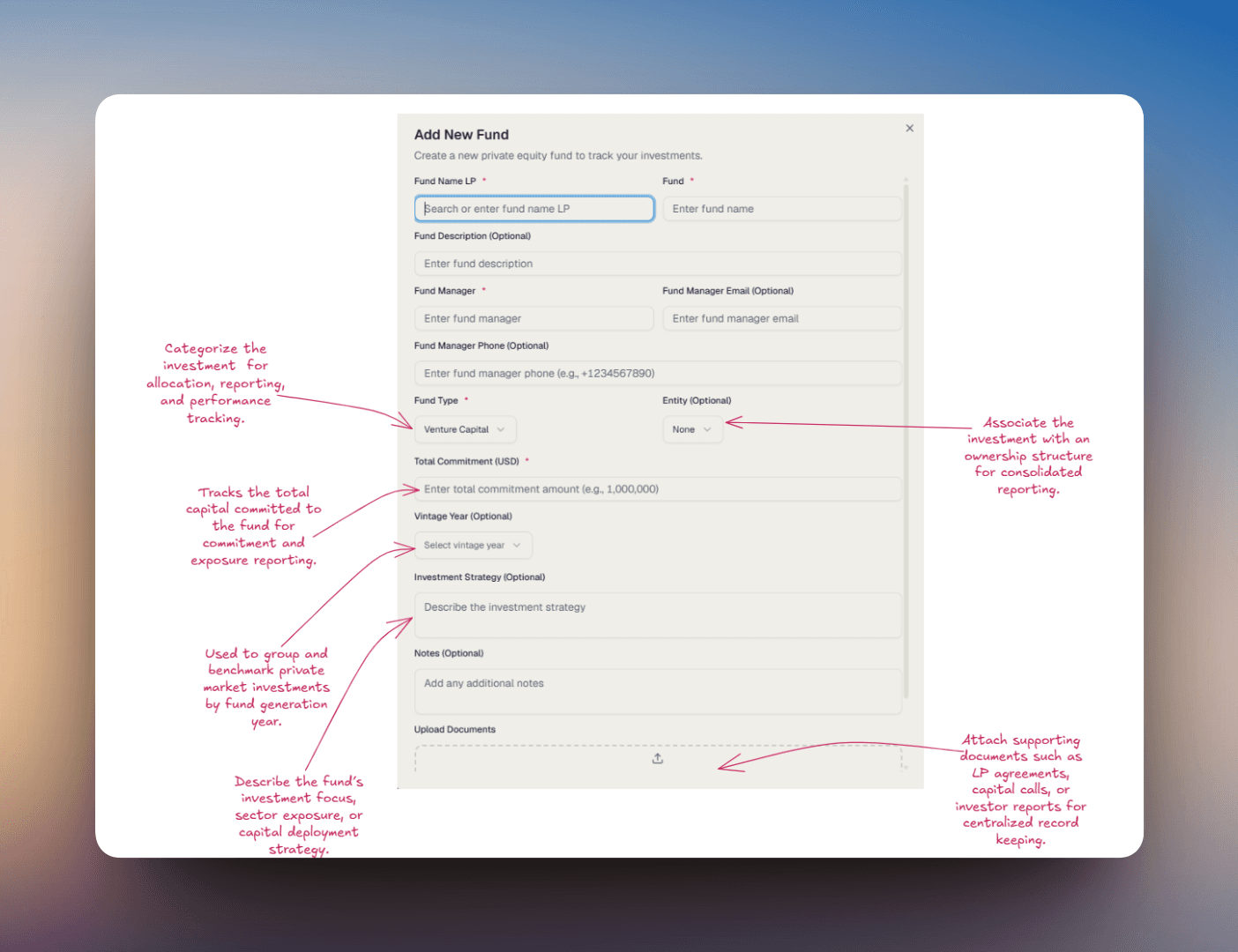
This form allows you to track both operational and investment-related details for private market investments.
Step 2 - Enter Fund Information
Fill in the required fund details.
Fund Name LP
Legal or limited partner name associated with the investment.
Fund
Display name of the private equity fund.
Fund Description
Optional summary or description of the fund and investment structure.
Fund Manager
Primary manager or investment firm managing the fund.
Fund Manager Email
Optional contact email for the fund manager or firm.
Fund Manager Phone
Optional contact phone number.
Fund Structure
Fund Type
Select the type of private investment vehicle. Examples: Venture Capital, Buyout, Growth Equity, Private Credit.
Entity
Optionally associate the fund with a trust, LLC, family office entity, or investment vehicle. This helps maintain ownership structures and consolidated reporting.
Total Commitment
Total committed capital allocated to the fund. This value is commonly used for commitment tracking, capital call reporting, and exposure analysis.
Vintage Year
Year the fund was established or raised. Vintage year is commonly used in private market performance analysis and benchmarking.
Investment Information
Investment Strategy
Optional description of the fund's investment thesis or strategy. Examples: early-stage technology, distressed credit, growth equity, infrastructure.
Notes
Track additional operational or investment-related information. Examples: manager updates, investment commentary, allocation notes, risk considerations.
Document Uploads
Upload Documents
Attach supporting documents related to the investment. Examples: subscription agreements, capital call notices, fund statements, LP agreements, investor reports.
Step 3 - Create the Fund
After entering the required information, click Create Fund.
Adding a Direct Investment
Direct Investments can be used to track privately negotiated investments made directly into companies or special purpose vehicles (SPVs).
This is commonly used for:
- Startup investments
- Angel investments
- Venture deals
- SPV allocations
- Co-investments
- Private company ownership positions
To add a direct investment, navigate to the Private Equity section, click New investment, and then click Add direct investment.
Step 1 - Open the Direct Investment Dialog
After clicking New investment and then Add direct investment, the creation dialog will open.
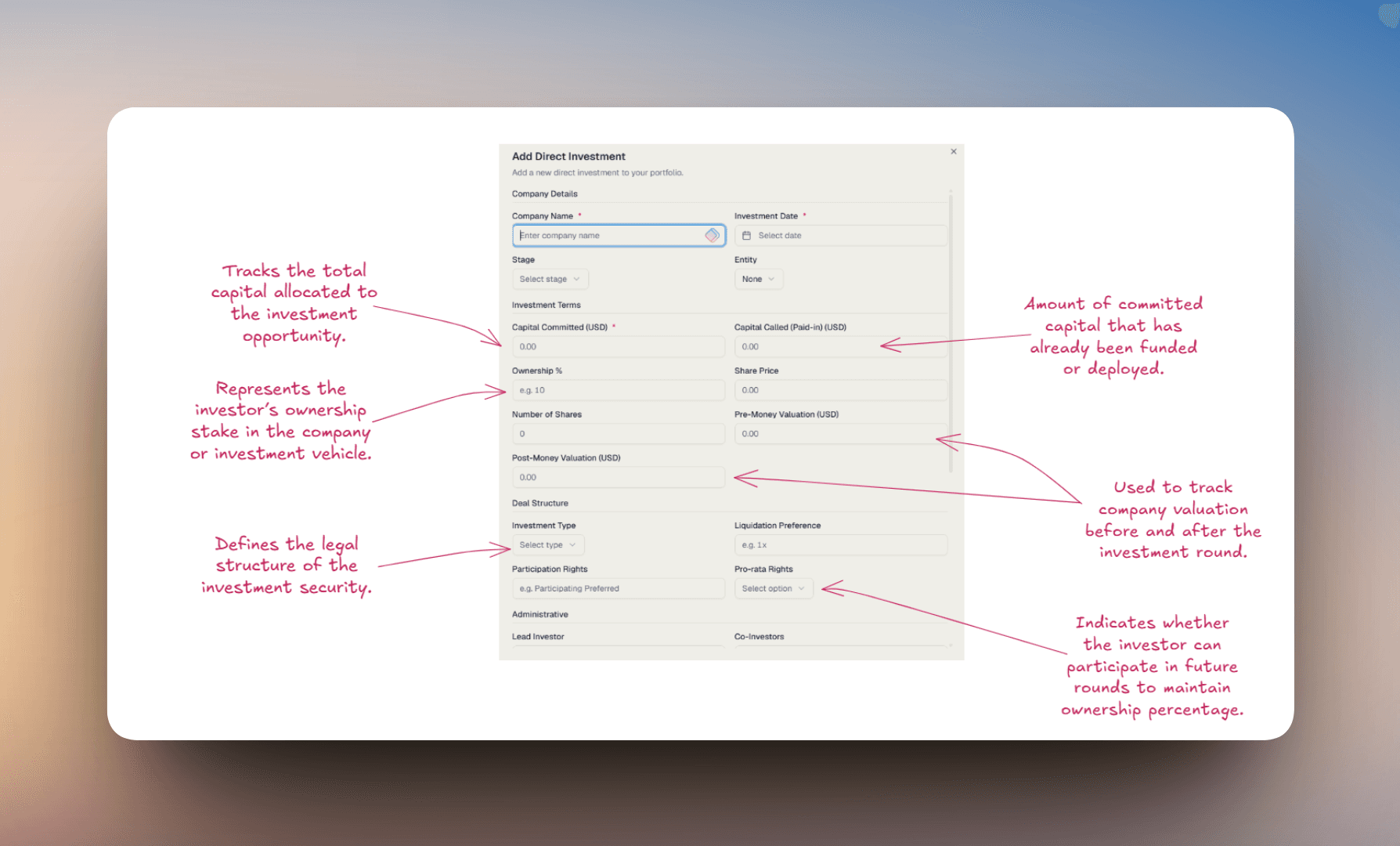
This form allows you to track investment terms, ownership structure, valuation data, co-investors, and supporting documentation.
Step 2 - Enter Company Details
Fill in the required investment information.
Company Name
Name of the company receiving the investment.
Investment Date
Date the investment was executed or funded.
Stage
Current company or fundraising stage. Examples: Seed, Series A, Series B, Growth.
Entity
Optionally associate the investment with a trust, LLC, family office entity, or investment vehicle. This helps maintain ownership structures and consolidated reporting.
Investment Terms
Capital Committed
Total capital committed to the investment.
Capital Called (Paid-in)
Amount of committed capital that has already been funded.
Ownership %
Percentage ownership associated with the investment.
Share Price
Price paid per share or unit during the investment round.
Number of Shares
Total shares or units acquired through the investment.
Pre-Money Valuation
Company valuation immediately before the investment round.
Post-Money Valuation
Company valuation immediately after the investment round. These valuation metrics help track dilution, ownership impact, and investment performance over time.
Deal Structure
Investment Type
Structure of the investment security. Examples: Preferred Equity, Common Equity, SAFE, Convertible Note.
Liquidation Preference
Defines payout priority during a liquidity event. Examples: 1x, 2x participating.
Participation Rights
Optional rights associated with the investment structure.
Pro-rata Rights
Defines whether the investor has the right to participate in future rounds to maintain ownership percentage.
Administrative Information
Lead Investor
Primary investor leading the investment round.
Co-Investors
Additional investors participating in the deal.
Fund / SPV
Associated fund or special purpose vehicle used for the investment.
Contact Person
Primary operational or investment contact.
Contact Email / Phone
Optional contact information associated with the investment.
Notes / Memo
Track investment commentary, operational notes, legal considerations, follow-up items, and strategic updates.
Document Uploads
Upload Documents
Attach supporting documents related to the investment. Examples: SAFE agreements, subscription documents, term sheets, cap table exports, investment memos, legal agreements.
Step 3 - Create the Investment
After entering the required information, click Create Investment.
Adding a Capital Call
Capital Calls can be added to track contributions requested by a private equity fund, venture fund, or direct investment.
This is commonly used to record:
- Investor funding requests
- Paid-in capital activity
- Unit purchases
- NAV updates
- Supporting investment documents
To add a capital call, open the associated fund or investment and click Add Capital Call.
Step 1 - Open the Capital Call Dialog
After selecting Add Capital Call, the capital call creation dialog will open.
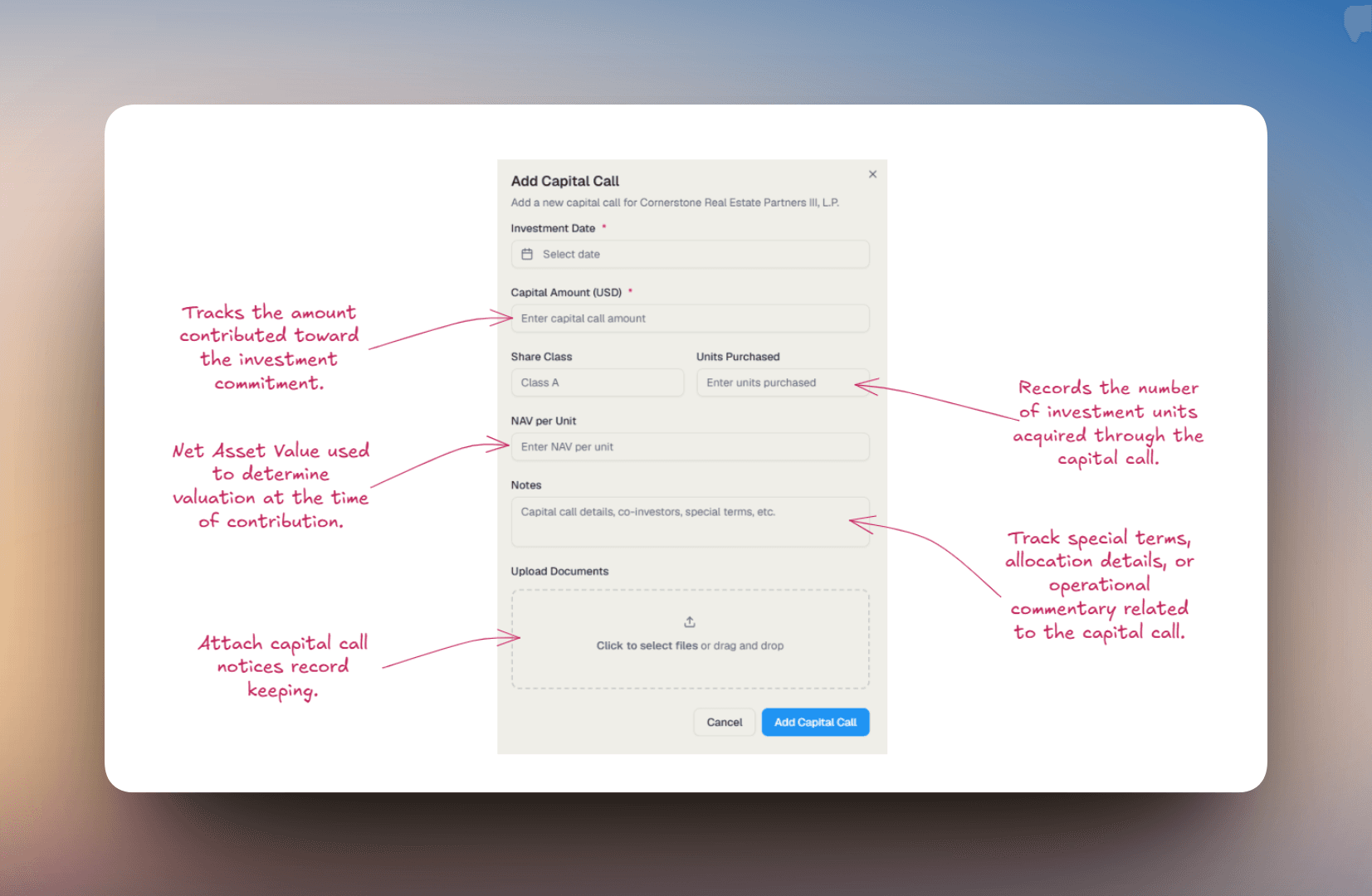
This form allows you to track contribution amounts, investment units, valuation metrics, and supporting documentation related to the capital call.
Step 2 - Enter Capital Call Information
Fill in the required capital call details.
Investment Date
Date the capital contribution was made or processed.
Capital Amount
Total amount contributed as part of the capital call. This value contributes to paid-in capital tracking, exposure calculations, and commitment reporting.
Share Class
Optional investment or unit class associated with the contribution. Examples: Class A, Class B, Institutional.
Units Purchased
Number of units or shares acquired through the capital contribution.
NAV per Unit
Net Asset Value per unit at the time of the capital call. Used for valuation and ownership tracking.
Additional Notes
Notes
Track additional information related to the capital call. Examples: co-investor participation, special investment terms, funding notes, operational updates, allocation commentary.
Document Uploads
Upload Documents
Attach supporting documents related to the capital call. Examples: capital call notices, subscription documents, allocation schedules, fund statements, payment confirmations.
Step 3 - Add the Capital Call
After entering the required information, click Add Capital Call.
Adding a Quarterly Statement
Quarterly Statements can be added to track periodic valuation updates, contributions, distributions, and fund performance over time.
This is commonly used for:
- Quarterly NAV reporting
- Private fund statements
- Investor reporting
- Contribution tracking
- Distribution tracking
- Performance reconciliation
To add a quarterly statement, open the associated fund or investment and click Add Quarterly Statement.
Step 1 - Open the Quarterly Statement Dialog
After selecting Add Quarterly Statement, the statement creation dialog will open.
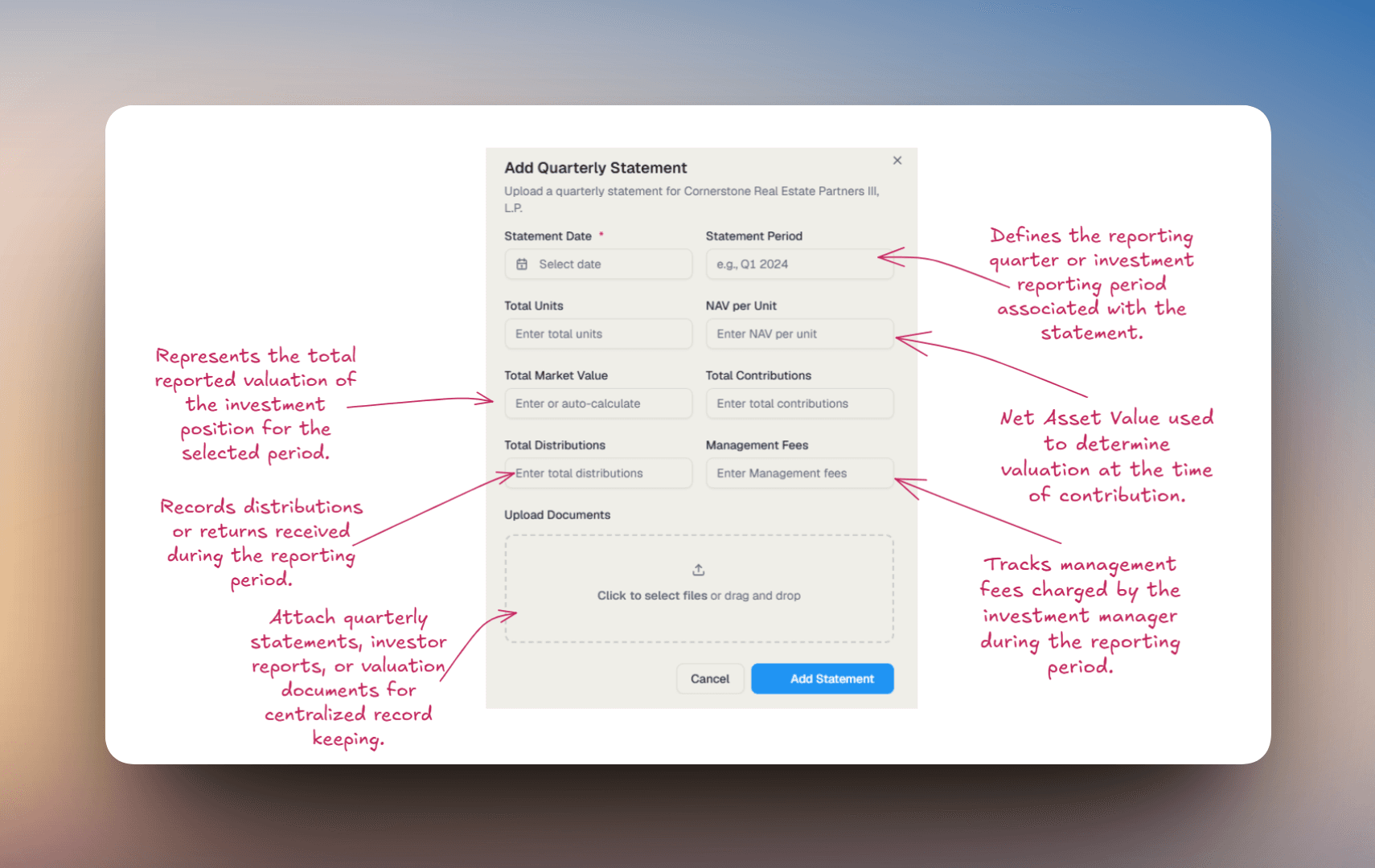
This form allows you to record valuation updates, unit balances, contributions, distributions, and supporting statement documents.
Step 2 - Enter Statement Information
Fill in the required quarterly reporting details.
Statement Date
Date associated with the quarterly statement or reporting period.
Statement Period
Quarter or reporting period covered by the statement. Examples: Q1 2024, Q2 2025.
Total Units
Total investment units or shares held during the reporting period.
NAV per Unit
Net Asset Value per unit reported for the statement period. Used for valuation and portfolio reporting calculations.
Total Market Value
Total valuation of the investment position for the reporting period. This may be entered manually or automatically calculated based on unit values.
Total Contributions
Total capital contributions made during the reporting period.
Total Distributions
Total distributions received during the reporting period.
Management Fees
Management fees charged during the reporting period.
Document Uploads
Upload Documents
Attach supporting quarterly reporting documents. Examples: quarterly statements, NAV reports, investor letters, fund performance summaries, capital account statements.
Step 3 - Add the Statement
After entering the required information, click Add Statement.
Common workflows
Quarterly statement processing
When a quarterly statement arrives, open the investment, go to the Statements tab, and upload the PDF. Review the parsed values in Pending Reviews, confirm, and the platform updates NAV, distributions, and all downstream metrics automatically.
Cash flow planning for capital calls
Look at the Open Capital column in the list view to see how much could still be called across all your funds. For investments in their active deployment period, plan on calls of 15-25% of remaining commitment per year as a rough liquidity reserve.
K-1 season prep
In Q1 each year, filter your investments by entity and pull the Documents tab for each. K-1s typically land between March and September - anything missing by April is worth chasing.
Performance review for an advisor or CPA
Export the list view as a starting point, then drill into the Performance tab on individual investments for IRR, TVPI, and DPI. Having those numbers ready cuts advisor meeting time in half.