Entity Management
Managing Your Entity Portfolio
How to organize your family office around trusts, LLCs, foundations, and holding companies - and why getting the structure right makes everything else easier.
Last updated
Welcome to your Entity Portfolio
Most family offices and high-net-worth households don't hold everything in one name. Assets are typically spread across trusts, LLCs, foundations, and holding companies - each with its own tax ID, jurisdiction, ownership structure, and purpose. The Entity Portfolio is where you map all of that out so the rest of the platform understands who owns what.
Once your entities are set up, every holding, transaction, and report on the platform can be filtered, grouped, and reported by entity. This is what powers the Holdings by Entity breakdown on your main dashboard, your entity-level P&L reports, and the data you'll hand to your CPA or estate attorney at year-end.
Creating a new entity
Click Create Entity in the top right to open the new entity wizard. You'll be asked for the following information - having it ready in advance speeds things up considerably.
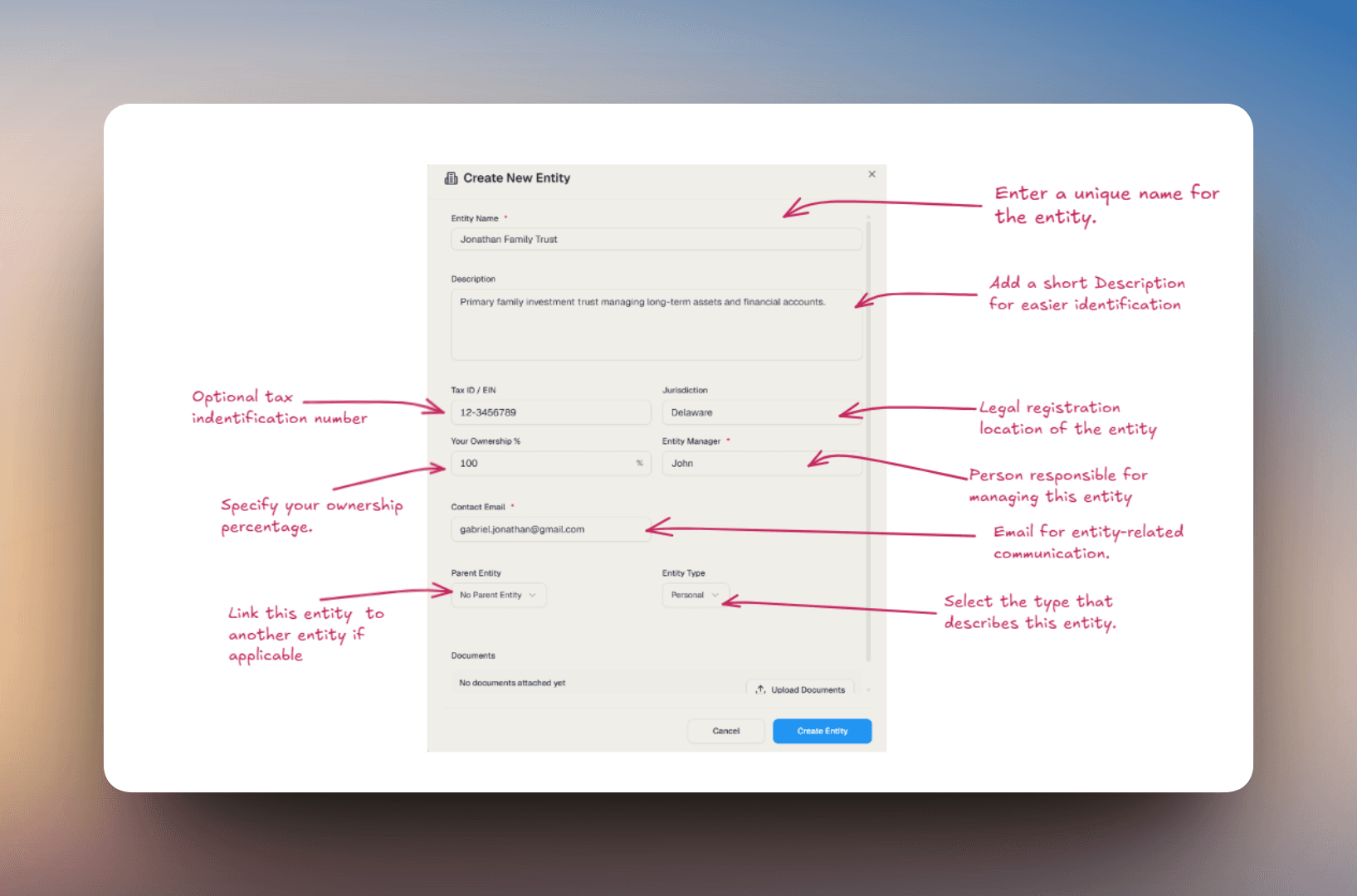
- Entity name - The legal name as it appears on formation documents.
- Entity type - Trust, LLC, Foundation, Limited Co., or other. This affects how the entity behaves in reports.
- Tax ID (EIN) - The federal EIN. If the entity is foreign or doesn't have an EIN yet, leave this blank - you can add it later.
- Jurisdiction - State or country of registration. For Texas entities, you can optionally specify the county (e.g., Harris County).
- Ownership % - Your share of the entity. Default is 100% - change this only if you have co-owners.
- Manager - The person responsible for the entity. You can select from existing team members or add a new contact.
Optional but recommended fields:
- Parent entity - if this entity is owned by another entity, link it. This is what makes Graph View work properly.
- Beneficiaries - for trusts, list the named beneficiaries. Useful for estate planning reports.
- Formation date - defaults to today, but you should change it to match your actual formation date for accurate historical reporting.
- Documents - upload formation documents, operating agreements, or trust instruments now so they're linked to the entity from day one.
If you're forming Texas entities, fill in the county field in addition to the state. It helps with local franchise tax reporting and shows up correctly in jurisdiction-grouped reports.
After you create an entity - linking holdings
Creating an entity is step one. To make it useful, you need to assign holdings to it. There are two ways:
- One at a time: Open any holding under Holdings, click Edit, and set the Entity field to the new entity.
- Bulk assign: In Holdings, click the checkmark (✓) button in the toolbar to enable multi-select - checkboxes will appear on each row. Select all the holdings you want to assign, then use the action bar that appears to set the entity for all of them at once.
Once holdings are linked, expand any entity row to see a full breakdown - your share value, unrealized return, number of holdings, and an asset allocation bar showing how the entity's value splits across Private Equity, Digital Assets, Cash, and other classes. Click Assets Managed by Entity to drill into every individual holding underneath it.
The entity will also appear on your main dashboard under Holdings by Entity, and you'll be able to run entity-specific P&L, allocation, and capital flow reports.
List view
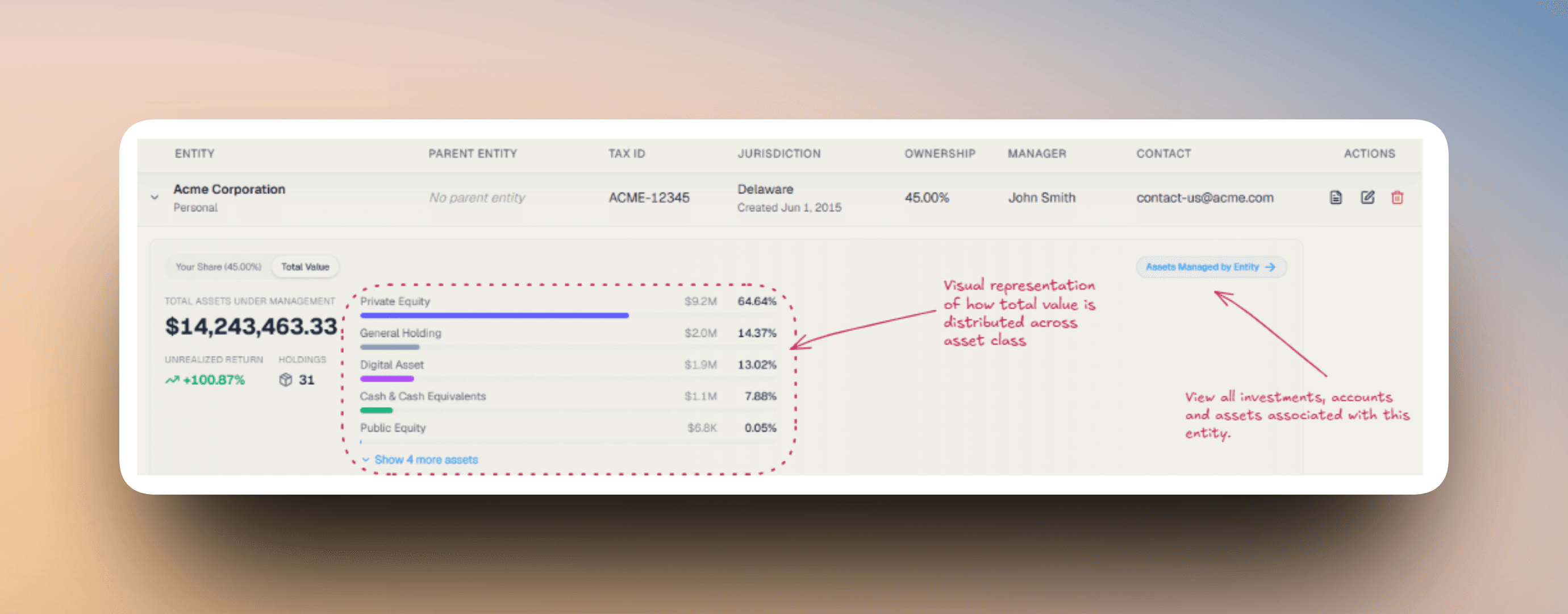
The default view. Each entity appears as a row with its key fields - name, parent, tax ID, jurisdiction, ownership %, manager, and contact - visible at a glance. Expand any row to see the entity's share value, unrealized return, holdings count, and a full asset class breakdown. Use this view for day-to-day management and editing.
Graph view
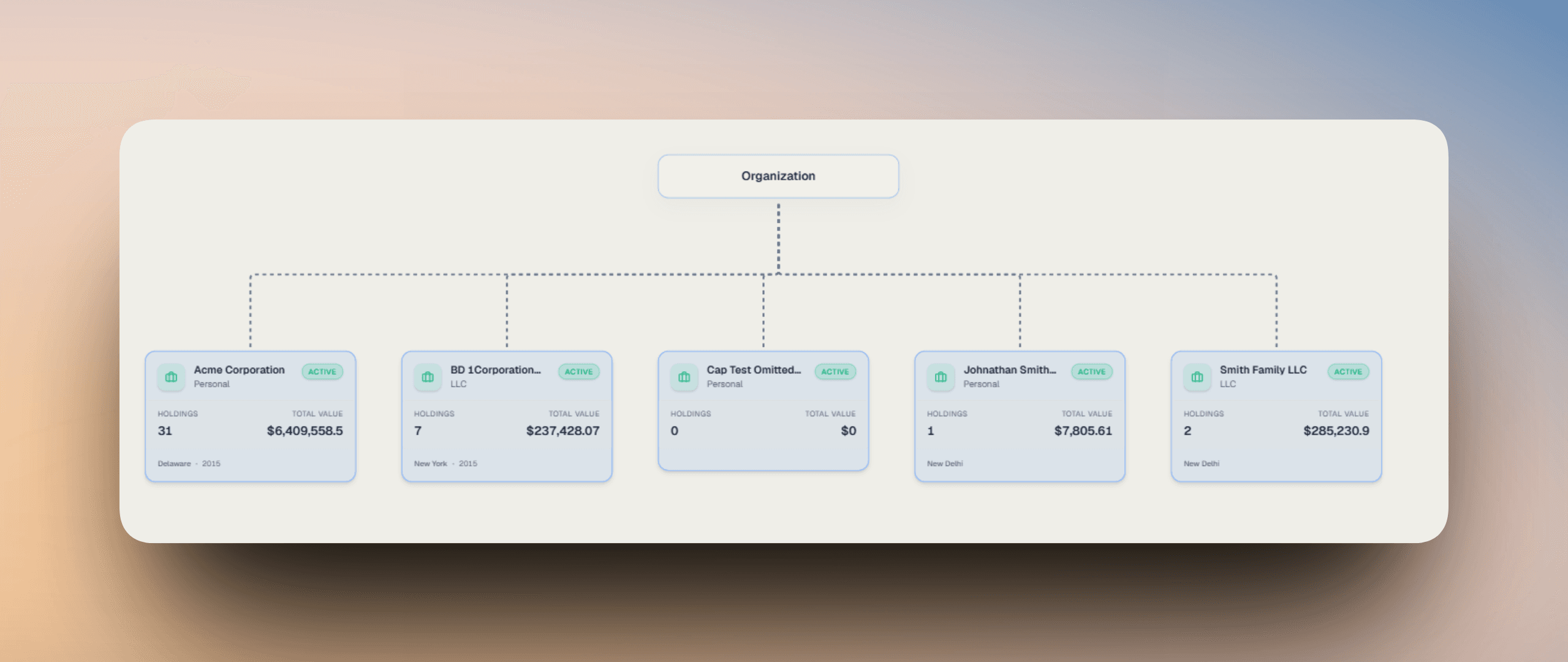
A visual org chart that draws lines between parent and child entities. Best for understanding ownership chains, presenting your structure to an attorney or CPA, and spotting structural gaps.
If you have nested entities - e.g., a trust that owns an LLC that owns a foundation - Graph View makes the chain immediately obvious. List View shows the same information in the Parent Entity column, but the visual is much faster to absorb.
How ownership chains work
In real life, wealth is rarely held in a single name. A family trust might own a holding company, which owns an LLC, which holds real estate or investments. The platform lets you mirror this exactly using the Parent Entity field - link each entity to the one above it, and the platform figures out the rest.
Here's a simple example:
Kroft Family Trust
└── 1K Growth LLC
    └── Palantir Ops
Kroft Family Trust owns 1K Growth LLC, which owns Palantir Ops. A holding inside Palantir Ops is still yours - the platform traces the chain upward and counts it in your total AUM, net worth, and allocation automatically. You don't need to do anything extra.
What happens when you don't own 100%? Ownership percentages multiply down the chain. Say you own 60% of a holding company, and that holding company owns 50% of an SPV that holds a $10M asset:
60% × 50% × $10M = $3M attributed to you
The platform does this math for you. Every number on your dashboard - AUM, net worth, P&L - already reflects your actual proportional ownership, not the gross value of the entity.
Circular ownership isn't allowed - for example, Entity A owning Entity B while Entity B owns Entity A. The platform will flag this. If an entity has no parent, just leave the field blank.
Best practices
- Add entities top-down - start with your trusts and holding companies, then add what they own underneath.
- Use the exact legal name from your formation documents, not a nickname.
- Assign every holding to an entity - anything unassigned won't show up in entity-level reports.
- Review tax IDs, jurisdictions, and ownership % once a year before tax season.